

Introduction
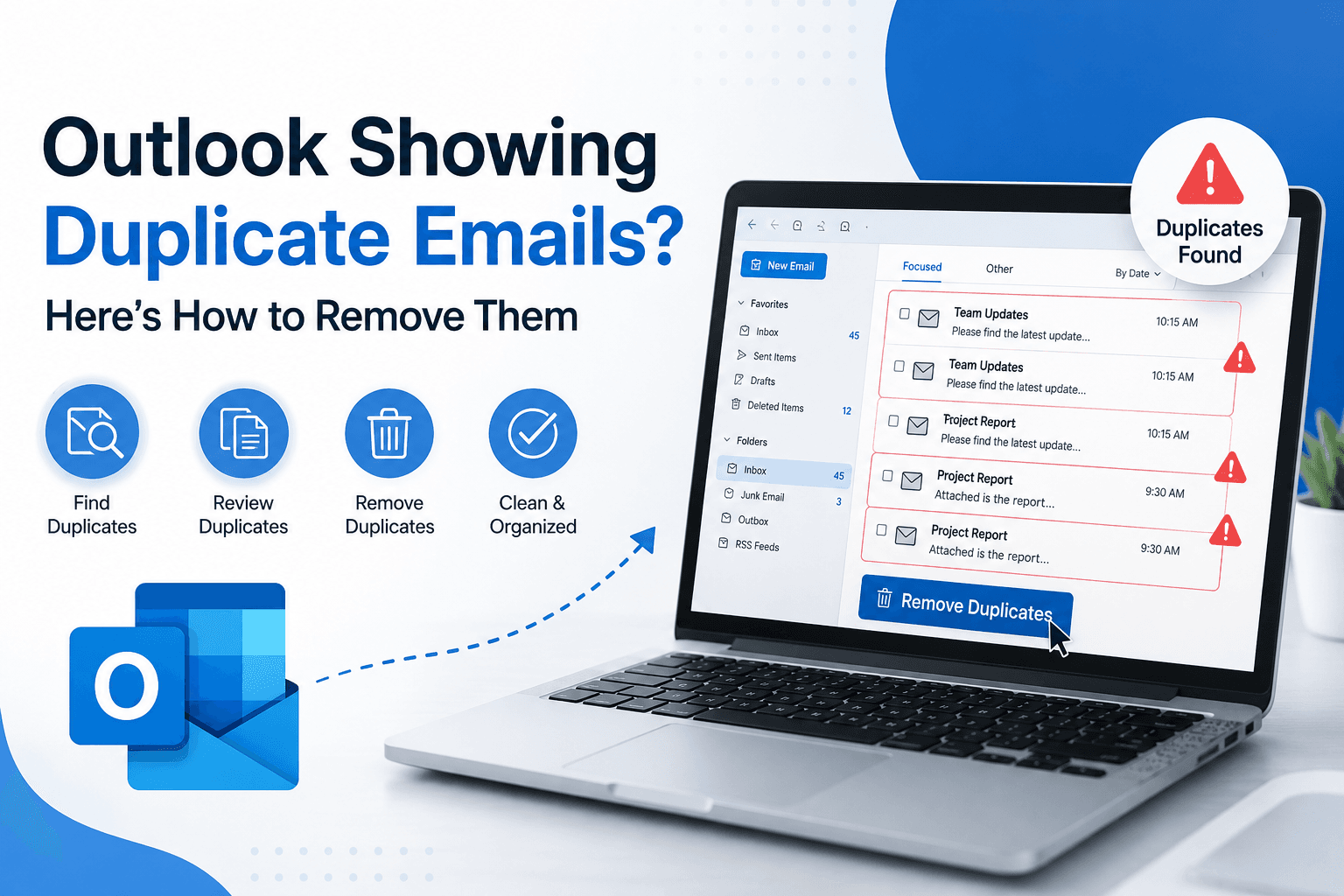
Suddenly, Outlook shows two or more copies of the same email in your Inbox, Sent Items, or other folders? You are not alone. One of the most common problems faced by Outlook users, whether they are using Outlook to manage personal or business emails, is duplicate emails.
These messages are sent again and again, and not only do they clutter your inbox but also make it hard to find the important emails. Over time, they collect, adding to the size of your Outlook PST file, slowing down searches, taking up unnecessary storage, and making the management of your mailbox frustrating.
The good news is that you can usually get rid of duplicate emails without losing your original messages. There are several reliable ways to fix the problem, no matter how the duplicates were created – via importing a PST file, synchronizing an email account, restoring a backup, send/receive errors, etc.
This guide will teach you why Outlook creates duplicate emails, how to safely remove them, and how to stop them from popping up again.
Why Users Need to Remove Duplicate Emails
The problem of duplicate emails has various practical implications for both private and professional users.
1. Outlook Performance Improvements
When your mailbox gets filled with duplicate messages, it gets bigger, which leads to Outlook being slower to load, search, and sync.
2. Free Up Storage Space
Copying the same e-mail over and over again just increases the size of your PST file and uses up valuable storage space.
3. Keep Your Mailbox Organized
A tidy mailbox makes it much easier to find important conversations and attachments.
4. Prepare for Backup or Migration
Remove Duplicate Emails Before Backup or Migration of Outlook Data. This will reduce the file size and make the entire process faster.
5. Avoid Business Communication Confusion
Users may reply to the wrong email, miss new messages, or have incorrect email records due to repeated messages.
Method 1: Prevent Duplicate Emails During PST Import
Best for: Users who import PST files into Outlook.
The most common cause of duplicate e-mail is importing the same PST file multiple times.
Steps
- Launch Microsoft Outlook.
- Click File > Open & Export > Import/Export.
- Choose Import from another program or file.
- Choose Outlook Data File (.pst).
- Select the PST file.
- Under Options, choose Do not import duplicates.
- Complete the import process.
Pros
- Prevents duplicates from appearing.
- Native Outlook features.
- Quick, easy.
Cons
- Works only during PST imports.
- No duplicate emails removed.
Method 2: Delete Duplicate Emails Manually
Best for: Small mailboxes with few duplicate messages.
For a small number of duplicate emails, you can usually clean them up manually.
Steps
- Open the Outlook folder that has duplicate email messages.
- Sort messages by Subject, From, or Date Received.
- Compare duplicate records.
- Remove needless duplicates.
- Delete duplicate emails.
- Empty the Deleted Items folder.
Pros
- No additional software needed.
- Full control over deleted emails.
Drawbacks
- Long.
- Easy to delete the wrong email address.
- Not practical for big mailboxes.
Method 3: Use Outlook’s Conversation Cleanup
Best for: Deleting duplicate conversation messages.
Outlook has a Cleanup feature that removes unnecessary copies in email conversations.
Steps
- Launch Outlook.
- Choose the folder you want to clean.
- Click Home > Clean Up.
- Select one of the following:
- Dialogue Clean Up
- Clean Up Folder
- Empty Folder & Subfolders
- Check the results.
Pros
- Part of Outlook.
- Simple to use.
- Helps reduce repetitive email conversations.
Cons
- For conversation threads only.
- Misses some emails that are duplicates.
Method 4: Create a New Outlook PST File
Best for: Mailboxes with thousands of duplicate messages.
The easiest solution for common duplication in your mailbox is to create a new PST file.
Steps
- Start Outlook.
- Create a new Outlook Data File.
- Create folders if necessary.
- Only move to the new PST those emails you need.
- Check all folders.
- Archive the old PST after verification.
Pros
- Creates a tidy mailbox.
- Improves Outlook performance.
- Clears out unnecessary clutter.
Cons
- Needs to be manually organized.
- Larger mailboxes take more time to rebuild.
Method 5: Repair Outlook PST File
Best for: Users facing PST corruption along with duplicate emails.
Sometimes corruption of the mailbox can cause problems with synchronization or duplication.
Steps
- Close Outlook.
- Run the Inbox Repair Tool (SCANPST.EXE).
- Choose the Outlook PST file.
- Check the mailbox.
- Fix any issues detected.
- Close and re-open Outlook and check.
Pros
- Fixes PST corruption.
- Enhances mailbox stability.
- Comes with Outlook.
Cons
- Does not directly delete duplicate emails.
- We can’t fix every mailbox problem.
Professional Solution for Removing Outlook Duplicate Emails
Manual methods are good for small mailboxes, but when duplicate emails exist in multiple folders or multiple PST files, then it becomes inefficient. GainTools PST Duplicate Remover is the best and fastest solution for these cases.
It scans the whole Outlook PST file and matches emails based on properties like sender, recipient, subject, received date, attachments, message size, and internet headers. This helps to identify the true duplicates but retain the original email.
It can also scan selected folders, process more than one PST file at the same time, maintain the folder hierarchy, and work with both ANSI and Unicode PST files. The automated process also saves users a lot of time and reduces the risk of accidental deletion.
Key Features & Benefits
- Remove duplicate emails from Outlook PST files.
- Supports large mailboxes in Outlook.
- Keeps original folder structure.
- Processes PST files in ANSI and Unicode.
- Reduces the size of the PST file.
- Makes Outlook run better.
- This saves time over manual clean-up.
- During the operation, the original mailbox data is protected.
Conclusion
Duplicates can quickly make an organized Outlook mailbox into a confusing mess of repeated messages. They waste storage space, they slow down Outlook, and they make managing email unnecessarily difficult.
Luckily, the problem is usually easy to fix. For smaller mailboxes, Outlook’s built-in import settings and manual cleanup options, along with the conversation cleanup feature, can be useful. For larger Outlook data files with thousands of duplicate messages, a professional duplicate remover is a faster and more reliable choice.
Frequently Asked Questions
1. Why is Outlook showing duplicate emails?
Generally, duplicate emails are caused by repeating PST imports, problems with account synchronization, problems with server synchronization, mailbox backups, or accidentally copying Outlook data.
2. Can Outlook automatically remove duplicate emails?
Outlook is able to prevent duplicate emails during PST imports and clean up conversation threads, but it is not able to automatically delete all duplicate emails from a mailbox.
3. Will deleting duplicate emails affect my original messages?
No. Correctly identified duplicate emails will result in the removal of duplicate copies only – the original email is left untouched.
4. How can I stop Outlook from creating duplicate emails?
Do not import the same PST file more than once; use the Do not import duplicates option. Make sure to keep your account synchronized and review your mailbox from time to time.
5. Is professional duplicate removal software safe?
Yes. A PST duplicate removal software finds duplicate emails based on various matching criteria and keeps unique messages and the original Outlook folder structure.






Leave a Reply